
Screen Positioning for Better Eye Health: Height, Distance, and Angle Tips
PAGE
By PAGE Editor
Let’s be real. Screens are not going anywhere. Our phones have become our entertainment hub, office, and social activity centers. And if you thought we were kidding when we said phones, don’t even get us started on the time we spend on our work or personal laptops. We can’t live without our screen time. But while screens are so convenient and have become so important, we are also learning just how unhealthy our non-stop screen time can be on our eye health and well-being.
All that blur vision, headaches and dry eyes, neck and back aches, start with our eyes. And it’s important to remember that bad screen positioning is not only bad for our eye health, but it also forces us into bad posture and positions.
In this article, we will share all our top screen positioning tips for height, distance, and angle so that you can adjust your monitor for healthier and more comfortable screen time. Plus we have some pro tips on how you can use the right screen hardware and touchscreen portable monitor along with ergonomic tips to create the perfect viewing experience.
Importance of Screen Positioning for Eye Health
The position of your monitor at your desk is actually one of the leading causes of a condition called Computer Vision Syndrome, or CVS for short. Symptoms of CVS, which is also sometimes called digital eye strain include:
Blurry vision or double vision
Dry, red or irritated eyes
Headaches and eye fatigue
Difficulty in focusing on objects
Eye, neck and shoulder pain due to bad posture
The wrong screen distance, bad angles and height, all these force your eyes to overwork in order to see clearly. This can especially be a problem when glare on your monitor, bad room lighting or just the angle of your monitor make it difficult to view the screen. And with too much extended screen time without a break, this overworking adds up and leads to CVS, or more serious eye conditions.
How to Adjust the Height of Your Screen
Ideal Monitor Height: At or Slightly Below Eye Level
How High Should My Screen Be?
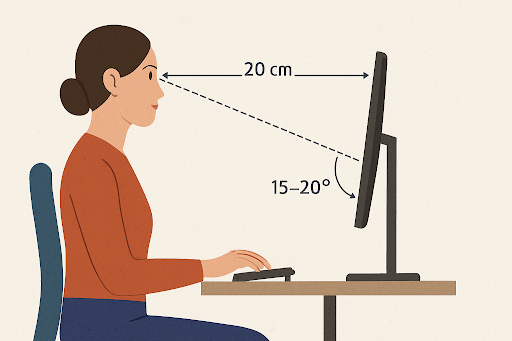
Your screen top third should be at or just below your eye level. This is where you want your gaze to naturally rest. Your neck will easily support the forward and slightly downward position of your gaze with this screen position.
Why Is This Important?
Eye muscles get tired and strained when they’re forced to tilt your head up and down. Keeping your eyes at a higher angle, for long periods of time, also dries out your eyes. This is because your eyelids cover a smaller area of the eyeball when you look up.
Pro Tips for the Ideal Screen Height:
Use a monitor riser or place books under your laptop or monitor
Position your screen using a touchscreen portable monitor or 2 in 1 computer, at or just below eye level by adjusting your seat height, or by propping it up on a sturdy box.
The Right Screen Distance: Neither Too Close nor Too Far
How Far Should Your Screen Be?
Okay, so this may sound a little counterintuitive but here’s what all those screen time rules say about distance. Your screen should be positioned such that it is neither too far nor too close to you.
The general rule of thumb is:
Take a 20-second break every 20 minutes to gaze at an object 20 feet away
As for where to place your screen on your desk, the general idea is that the monitor is:
Far enough from you that you can easily read the screen without straining
Close enough to you that you do not have to lean in or squint to read the screen
The perfect screen distance is:
At arm’s length away from you (20–28 inches)
Why Is This Important?
Too close and you will work overtime to focus on smaller text and items on the screen. Too far away, and you will either have to squint to get a better view or lean in to the point of having bad posture.
Pro Tips for the Ideal Screen Distance:
Play around with your fonts and screen resolution until you can see everything clearly at the recommended distance above.
Opt for a screen with a higher pixel density for better clarity.
A OLED monitor is a great choice if you have a OLED screen.
Best Screen Angle: Neither Too Left nor Too Right
What’s the Best Angle?
Your screen should be tilted backward at a comfortable 10–20-degree angle (depending on the screen size and your sitting position), so that your gaze is angled mostly downward but also without reflecting glare from ambient light.
Why Is This Important?
Screens that are too flat or too upright on your desk tend to reflect the light from the room, causing glare on the screen surface. Eyes tend to tire easily if they’re constantly adjusting to changes in light or contrast.
Pro Tips for Ideal Screen Angle:
Place your monitor perpendicular to windows to reduce the effects of sunlight glare
Use an anti-glare screen to reduce reflection
Anti-glare screens, and matte screen finishes with built-in anti-glare, are a common feature in most OLED monitors.
Lighting and Contrast: Setting Up the Perfect Picture
Screen positioning is important. But screen lighting and contrast is also important.
Tips for the Ideal Lighting and Contrast:
Use indirect lighting for your work area to minimize glare
Place your screens away from direct sunlight or ambient light.
Adjust the screen brightness and contrast to the same level of light in the room
Reduce blue light emission by using blue light filters (hardware or software), especially in the evenings.
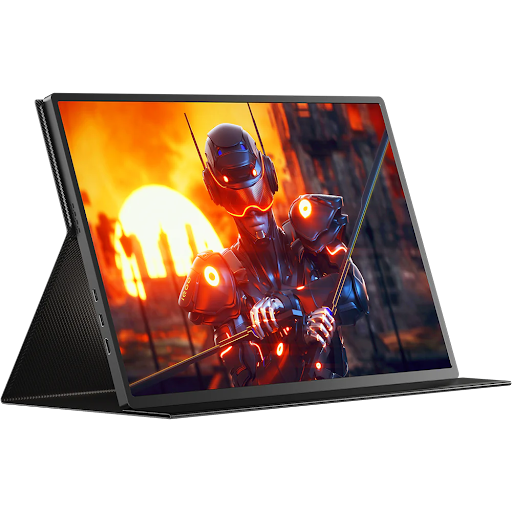
One of the ways a good monitor makes a difference is with dynamic brightness and color settings that you can control at will. That’s why you might also want to consider a touchscreen portable monitor especially if you are one that switches workspaces often at home, office and while traveling.
Managing Multiple Screens: Ergonomic Dual Monitor Setup
Setting up multiple screens also require good screen positioning. Having a secondary desktop display, combined with a main laptop or a 2-in-1 computer, means you are dealing with different screen sizes and resolutions.
Tips for Ergonomic Dual Screen Setup:
Your primary monitor or screen should always be directly in front of you, at the correct height, distance and angle
Place your second or extended screen at an angle slightly to the side, but still at the same height, distance and angle.
Adjust each monitor using an adjustable arm, to fine-tune the position of each.
Use the same brightness and color settings for all your monitors.
Keep in mind that screen positioning is only one part of the setup. Desk and chair height, which should also be adjusted to your posture are also important and should be adjusted for all your monitors or screens.
Ergonomic Checklist:
Feet flat on the floor or a footrest
Knees at 90 degrees
Lower back support
Arms close to your sides, also at 90-degree angle
Wrists straight, in line with forearms
If you’re using a touchscreen portable monitor or a 2 in 1 computer, take care to make sure that the method of input (touch or keyboard and stylus) does not force you to hunch or lean forward or to the side.
The Benefits of Quality Monitors
Did you know that your screen itself can actually make a big difference in your eye health? Here’s why:
1. OLED Monitors
Better contrast ratios and image quality
True blacks and glare-free screens
Smooth refresh rates and less blue light emission
Higher readability and clarity, for reduced eye strain
An OLED monitor from a trusted brand will give you a significant improvement in viewing experience, if you’re spending 6+ hours a day on your screen.
2. Touchscreen Portable Monitors
Adjustable positioning
Compact and portable design
Ideal for work-from-home or mobile work arrangement
Easy to set up for ergonomic positioning at work or at home
Traveling between workspaces whether at home or office, or between work-from-home and office set up, is easier as a hybrid worker or digital nomad. When you’re setting up a workspace at a café, coworking space, library, or home, having a touchscreen portable monitor means you have more control over your viewing angle and posture, more than when you use your laptop alone.
Screen Breaks & Eye Exercises
Trust us, no matter how ergonomically correct your workstation is, you still need to take screen breaks.
Simple Screen Break Eye Exercises:
The 20-20-20 Rule: Every 20 minutes, look at something 20 feet away for 20 seconds
Roll your eyes in a slow circular motion 2–3 times per hour
Rub your palms and gently place your palms on your eyes to relax eye muscles for 1 minute
Conclusion
Smart screen positioning is very important in a world where almost everyone is on their screens all the time. It’s not only critical to your eye health and comfort, but it can help reduce eye fatigue. Screen or monitor height, distance and angle of view are all important factors that need to be adjusted to the ideal ergonomic position.
While it’s important to have your screens positioned correctly, it’s also important to have the right hardware that gives you options when it comes to screen positioning. Investing in a touchscreen portable monitor or OLED monitor that’s of good quality also goes a long way in making sure that your screen time is comfortable whether you’re using it at home, on the go or in an office.
HOW DO YOU FEEL ABOUT FASHION?
COMMENT OR TAKE OUR PAGE READER SURVEY
Featured





Meta’s prescription-ready Ray-Ban AI glasses mark a pivotal shift from experimental wearable tech to everyday infrastructure, embedding intelligence seamlessly into how—and what—we see.